
Let’s be honest: setting up new software on your website usually feels like pulling teeth.
You find a tool that looks great, you sign up, and then you hit the wall. Suddenly you’re staring at a popup asking you to paste code into your header.php file, or warning you that modifying your theme might break your checkout flow.
If you aren’t a developer, that’s where most projects die.
But here is the reality: your customers don’t care how your site is built. When they land on your WordPress blog or Shopify store at 11 PM, they want answers now. If they have a question about shipping, pricing, or compatibility and see nothing but a dead-end contact form, they bounce.
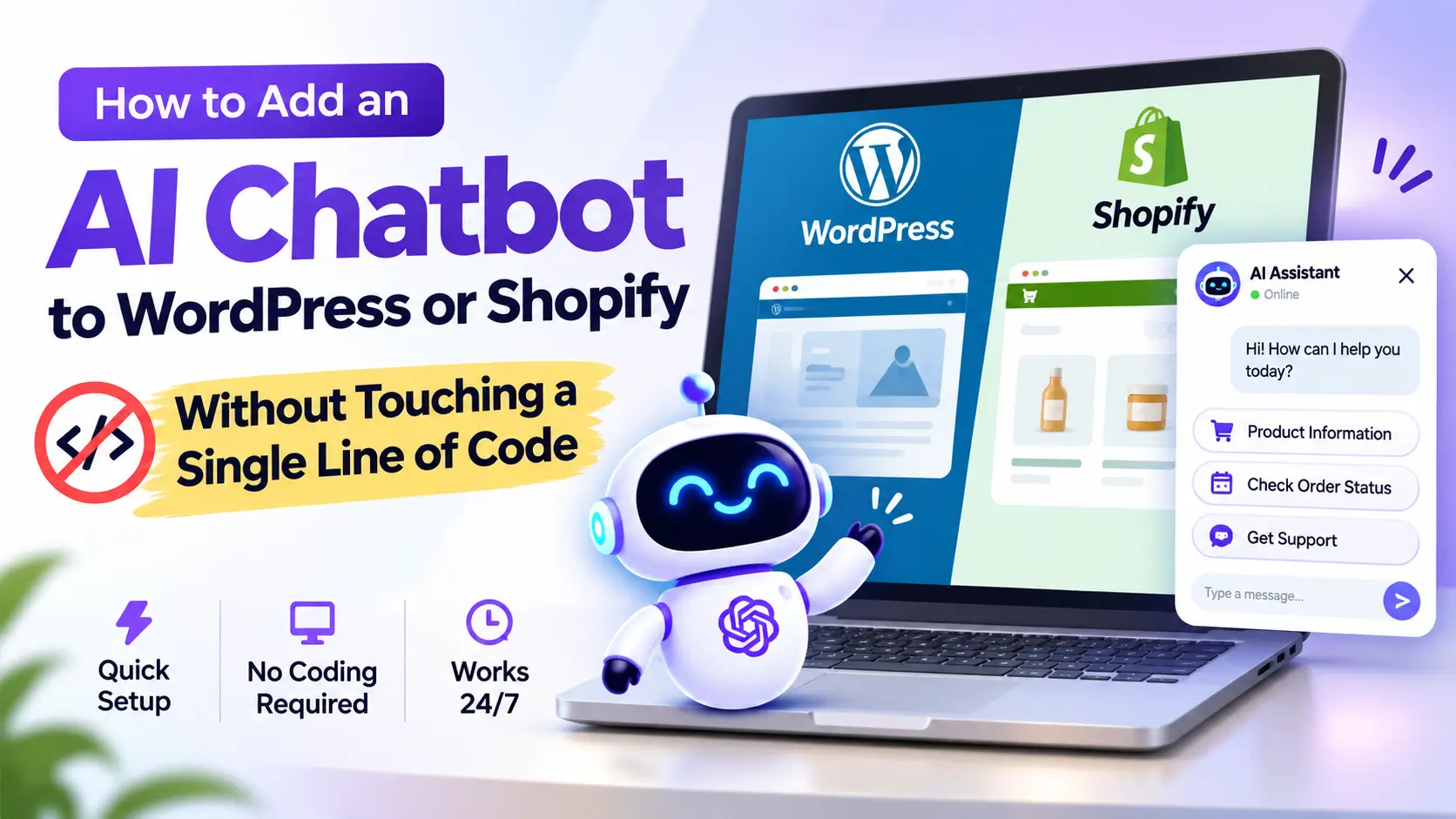
Adding an AI assistant shouldn’t require a computer science degree. Here is how you can set up a fully trained, 24/7 sales and support bot on your site in under 10 minutes—completely code-free.
Step 1: Feed the AI Your Business Data (Don’t Write Scripts)
Old-school chatbots used to drive everyone crazy. Remember those rigid decision trees where you had to click “Press 1 for Returns,” only to realize your exact question wasn’t on the menu?
Modern AI doesn’t work that way. Instead of mapping out a hundred rigid conversation paths, you simply point the bot at your existing information.
With a platform like NexChatBot, the setup is dead simple:
- Drop in your website URL.
- Upload your FAQ page, pricing sheets, or return policies.
The system crawls your content and learns your business inside out. If a customer asks, “Do you ship to West Delhi?” or “What’s your refund window?”, the bot doesn’t guess—it pulls the exact answer straight from the documentation you already have.
Step 2: Customize the Vibe (Make It Match Your Brand)
A robotic, generic chat bubble that says “How may I help you today?” screams out-of-the-box software.
Before you put the bot live on your site, spend two minutes tailoring its personality:
- Name it: Give your assistant a friendly name, or name it after your brand support team.
- Match your look: Adjust the widget colors so it fits cleanly into your theme (whether your store has a sleek dark mode or a clean minimalist white background).
- Set the greeting: Change the default prompt to something conversational. Instead of a boring welcome message, try: “Hey there! Looking for help choosing the right template or checking your order status? Ask me anything!”
Step 3: Add It to WordPress (Without Breaking Your Theme)
If your site runs on WordPress, you probably use a page builder like Elementor, Gutenberg, or a custom theme. You definitely don’t want to mess around with core theme files.
Here is the easiest way to embed your assistant:
- Grab your embed snippet: Inside your NexChatBot dashboard, copy the lightweight JavaScript snippet.
- Install a Header/Footer plugin: Go to your WordPress Dashboard -> Plugins -> Add New, and search for WPCode (or any lightweight header/footer injection plugin).
- Paste and Save: Go to the plugin settings, paste your snippet into the Header / Site Footer section, and hit save.
Boom—refresh your site, and your interactive assistant is live in the bottom corner, ready to guide your visitors.
Step 4: Add It to Shopify (For E-Commerce Stores)
Running a Shopify store means your main goal is reducing friction at checkout. You want a bot that answers product sizing questions, handles shipping tracking queries, and captures customer emails while you sleep.
For Shopify storefronts, integration takes seconds:
- From your Shopify Admin, go to Online Store -> Themes.
- Click the three dots next to your active theme and select Edit Code.
- Open the
theme.liquidfile. - Scroll down near the bottom to find the closing
</body>tag. - Paste your NexChatBot script right above that tag and hit Save.
That’s it. No custom apps required, no monthly overhead bloat, and zero impact on your site’s loading speed.
Step 5: Test It Like a Real Customer
Before you walk away and let the bot handle traffic, open your website in an Incognito window and try to break it.
Ask it the trickiest questions your customers usually throw at you:
- “What happens if my order gets delayed?”
- “Can I get a custom discount if I buy in bulk?”
- “How do I install this digital download?”
If it answers correctly, you’re set. If it misses something, jump back into your knowledge base, drop in a quick clarification, and watch it instantly get smarter.
Stop Losing Leads to the “After-Hours” Gap
Your website works around the clock to attract visitors. Don’t let your customer service stop just because you stepped away from your desk.
By setting up an automated assistant in the time it takes to drink a cup of coffee, you turn your static website into an active 24/7 conversion engine.
Ready to build yours? Head over to NexChatBot, feed it your URL, and watch how easy it is to put your customer support on autopilot.